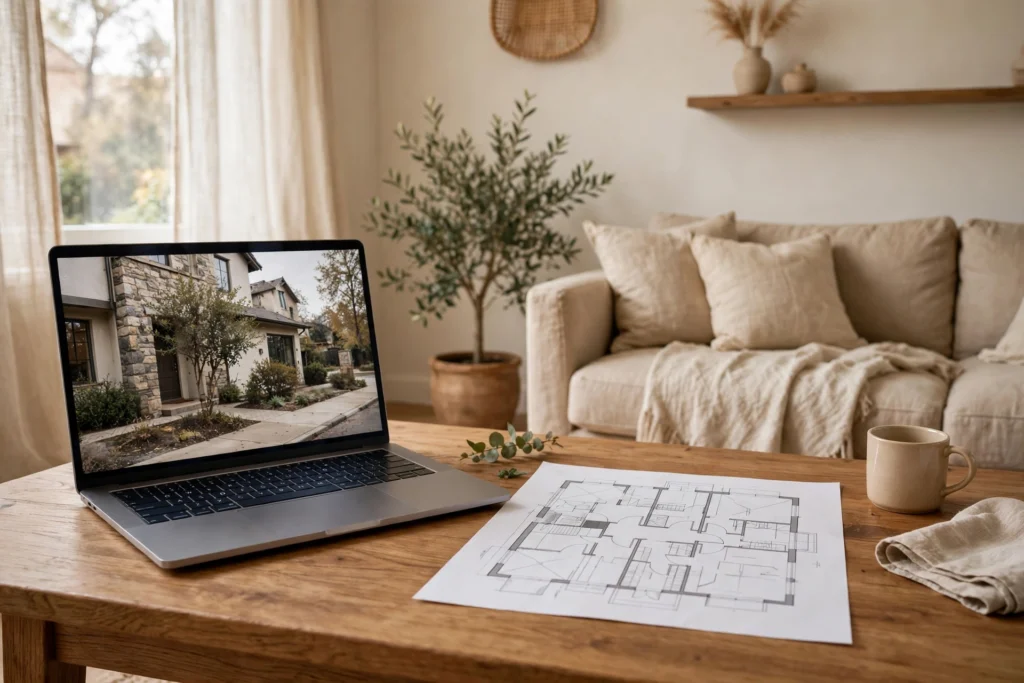
You can learn how to see the inside of a house online by using Street View for the street, listing photos for each room, and a 3D tour for the full walk-through. Add a floor plan, and you can check layout and room sizes before you book a visit.
Each tool shows a different slice of the truth. Photos show style, tours show flow, and plans show size.
This guide walks you through each option in order, from the street to the sofa, and ends with what to verify before you visit.
Start With Google Maps and Street View
First, start outside, even if your main goal is the inside. The street and the front set the scene for every room.
On a computer, open Google Maps and search for the address. Then drag Pegman, the small yellow figure, onto the map. Next, blue lines show where Street View imagery exists. Drop Pegman on a blue line to step into a street level photo.
Once you are in, drag to look around and click to move forward. Google explains these controls in its Street View help guide for Google Maps.
Street View can also step inside some public places. Google says you can experience places like museums, arenas, restaurants, and small businesses this way. For a private house, though, Street View normally stops at the front door. That limit is by design, not a fault.
Sometimes you will find older imagery, too. Click See more dates where it is offered, then scroll through past photos. Historic imagery is not available for every place.
What Street View tells you about a house
Look closely at the roof, windows, and front path. Then check for cracks, peeling paint, or a tired fence. Also check parking and the slope of the drive.
Next, scan the whole street. Are nearby homes cared for? Is there a busy junction next door? These details rarely appear in a listing, yet they shape daily life.
Use Listing Photos the Smart Way
After the street, open the listing gallery and slow down. First, go room by room and note what each photo proves. Then note what it leaves out.
Start with the widest shots of the living room and kitchen. After that, look for close shots of floors, tiles, and worktops. In short, close shots reveal wear that wide shots hide.
Also count the photos for each room as you go. A home with twenty living room photos and one bathroom photo sends a message. So ask the agent for the rooms you cannot see.
- Wide shots for layout and natural light
- Close shots for floors, grout, and finishes
- Window shots for the view and privacy
- Storage shots for closets and cabinets
- Night or dull day shots, if any exist
Also compare photos across sites for the same home. One site may crop a photo, while another shows the full frame. For example, the full frame may reveal a busy road or a damp corner.
Walk Through With 3D and Virtual Tours
Photos are flat, so they can flatter a room. In fact, a 3D tour fixes that problem in a big way. You move through the home at your own pace, turn around, and look up and down. The sense of size feels far more honest.
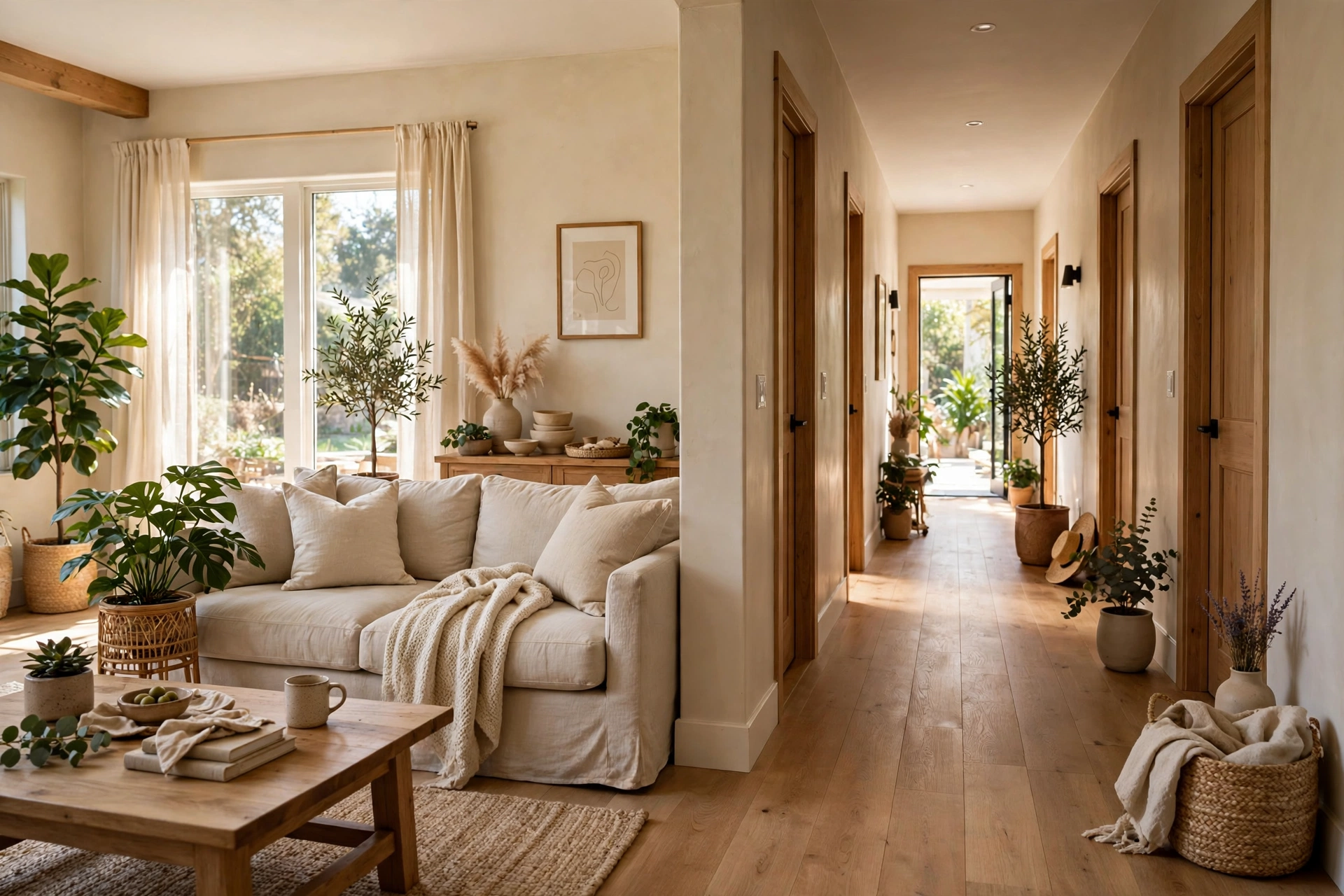
How to see the inside of a house online with a 3D tour
On a listing, look for a button or label that says 3D tour or virtual tour. Click it, and the tour opens inside the listing page. Then click a room, or click the floor plan, to jump where you want. Most tours work well on a phone, too.
Redfin calls its version a 3D Walkthrough, and it is self-guided. As Redfin’s 3D Walkthrough guide explains, you tour on your own through the listing page. By contrast, a live video-chat tour puts an agent inside the home in real time.
In addition, that same Redfin tour offers more than one view. Inside view lets you click through room by room. Dollhouse view shows a model you can rotate. Floor plan view shows each floor from above, and measurement mode lets you measure a wall.
Zillow takes a similar route with its 3D Home tours. The Zillow 3D Home app is free, and agents can capture a tour with a phone or a supported 360 camera. The app can also build an interactive floor plan from the same capture. After that, tours post to the listing for buyers to open.
- Open the listing and find the 3D tour button.
- Start at the front door and follow the hall.
- Turn a full circle in each main room.
- Switch to dollhouse or floor plan view.
- Use measurement mode where it is offered.
- List any room the tour skips or rushes.
Go through the tour twice. First, walk it for feel and flow. Then walk it again for faults, storage, and plug points.
Read the Floor Plan Before You Fall in Love
A floor plan may be the most honest tool of all. For example, it shows room sizes, door swings, and how spaces link. It also shows rooms that photos skip.
Check the numbers first, not the names. In particular, a room called a double bedroom may be very small on paper. If your bed and wardrobe do not fit, the room does not work.
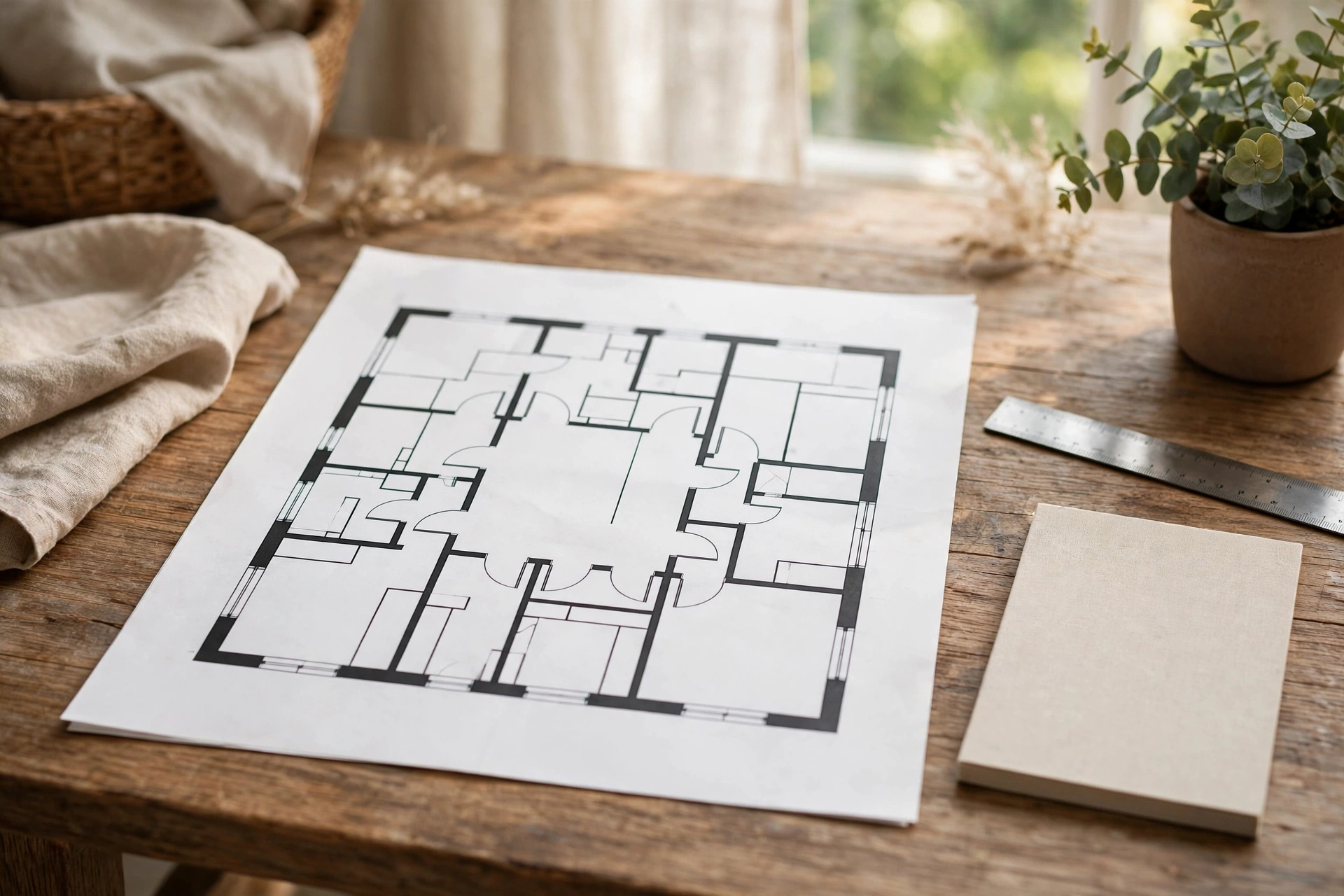
Then trace your daily route on the plan. Walk from the front door to the kitchen in your head. As a result, awkward routes show up fast on paper.
Layout ideas help once the basics check out. If a living room feels long and thin on the plan, our guide to living room layout ideas shows how furniture placement can fix the feel. Read it after you check the true size, not before.
Finally, match the plan to the photos, room by room. Does a door appear in photos but not on the plan? Mismatches are worth a polite question to the agent.
Compare Your Options at a Glance
The table below compares the main ways to view a home online, what each one shows, and where each one falls short.
| Method | What it shows | Cost to viewer | Main limit |
|---|---|---|---|
| Street View | Street and front | Free | Rarely goes inside homes |
| Listing photos | Rooms, style, finishes | Free | Angles can flatter rooms |
| 3D virtual tour | Full walk-through flow | Free | Only if the listing has one |
| Floor plan | Sizes and layout | Free | No colour, light, or feel |
| Live video tour | Agent-led real time view | Free to book | Needs a set time |
In short, use the table as a quick picker, not a ranking. For size, trust the plan. When it comes to feel, trust the tour. For the street, trust Street View, then verify on foot.
Verify This House Online in 6 Checks
Here is a short routine that most guides skip. Run all six checks, in this order. It takes about twenty minutes.
- Check the front on Street View against the listing photos. Then note any change in paint, windows, or garden.
- Match each photo to a room on the floor plan. Flag any room with no photo at all.
- Measure two key walls in the 3D tour, if measurement mode exists. Next, test your sofa and bed against them.
- Look out of every window in photos and in the tour. Note roads, walls, or homes that sit very close.
- Compare the same home on two or three listing sites. Also look for extra photos, older photos, or a past price.
- Search the address on its own. For instance, you may find an old listing, a rental ad, or a planning note.
Write the results in a simple list per home. After three or four homes, patterns appear. Trust the home with proof, every time.
Small homes need one extra check on storage. Indeed, photos can make a compact flat look airy with clever staging. Our roundup of small apartment ideas helps you judge if smart storage can truly make the place work. Use it while you study the tour, not after you move in.
Give each home a score out of six. Homes that score five or six earn a visit. Homes that score two or less need answers first.
Red Flags Hidden in Listing Photos
Some warning signs are easy to spot once you know them. Wide angle lenses top the list. They stretch a room and make it look far bigger instead. Look at door frames and tiles near the edges. If they bend or stretch, the lens is doing heavy work.
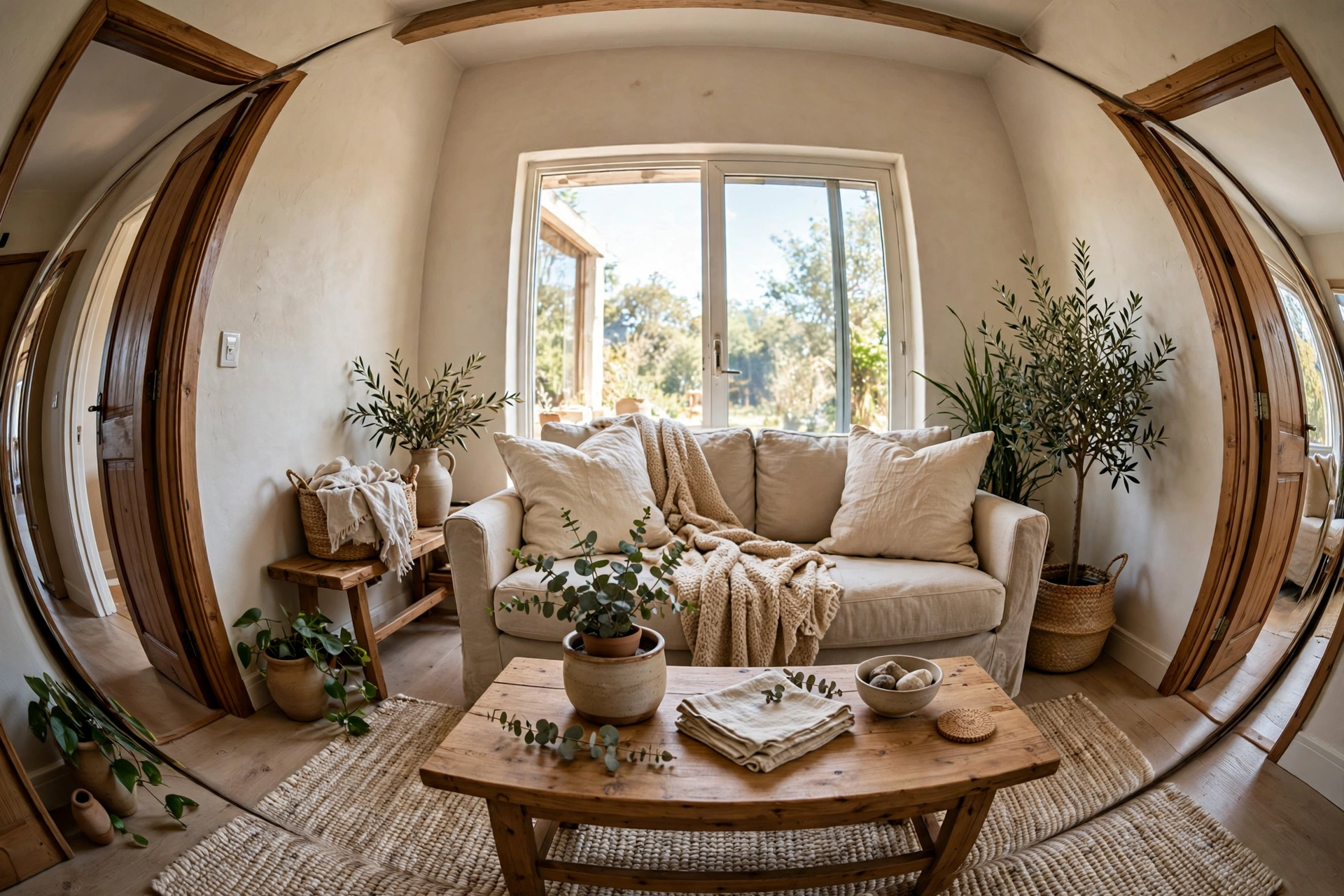
Light can mislead you, too. For example, photos taken at noon on a bright day say little about a dark winter evening. Also watch for every light switched on in daylight shots. That habit often hints at a naturally dark room.
Colour shifts are another quiet trick. Similarly, walls may look soft grey online and cold blue in real life. If paint colour matters to you, our notes on calming bedroom colour ideas show how light changes a shade through the day. Keep that in mind when a bedroom colour wins you over.
- Every photo taken from a corner, at ceiling height
- No photo of the bathroom, hall, or smallest bedroom
- Furniture that looks too small for the room
- Bright windows with no clear view outside
- Rugs or mats in odd spots in every shot
- Close crops that cut off floors or ceilings
Together, these points form a pattern worth checking. Then ask for plain phone photos of the skipped spots. A good agent will send them without fuss.
What You Still Cannot See Online
Even the best tour has blind spots. You cannot smell damp through a screen. Road noise and a loud boiler stay hidden too. A soft floor gives nothing away, either.
A home near a busy road may film well with the windows shut. Likewise, a flat above a shop may seem calm at midday. Only a visit, at the right hour, tells the truth.
Condition hides in small places, too. Bath seals and hairline cracks rarely show up well. For bathrooms, our guide to budget bathroom upgrades helps you tell a fresh fix from tired basics. Fresh grout is cheap, but a weak shower is not.
So treat online viewing as a filter, not a final verdict. Use it to cut a long list down to two or three homes, then visit those in person.
Privacy and Safety When You Look, and When You Sell
Privacy matters on both sides. Street View cars capture images from public roads, and those images can include your home. Google blurs faces and licence plates in its imagery.
If you own or rent a home, you can ask Google to blur it. Google says only the home owner or tenant can request a house blur, with proof of address. Open the Street View image, click Report a Problem, and complete the form. A blur, once applied, is permanent.
Sellers should think before a tour goes live, too. Remove mail, photos, and name plates before filming. Lock away medicines, spare keys, and items with names on them.
Never pay a deposit for a home you have only seen online. Scam listings copy real photos and use a fake low price. Verify the agent, visit the home, and pay through safe routes only.
How Sellers and Agents Present Interiors
Agents pick the best light, the best order, and the best first photo. Above all, the first photo sets your mood for the whole set. That is sales craft, and it is normal.
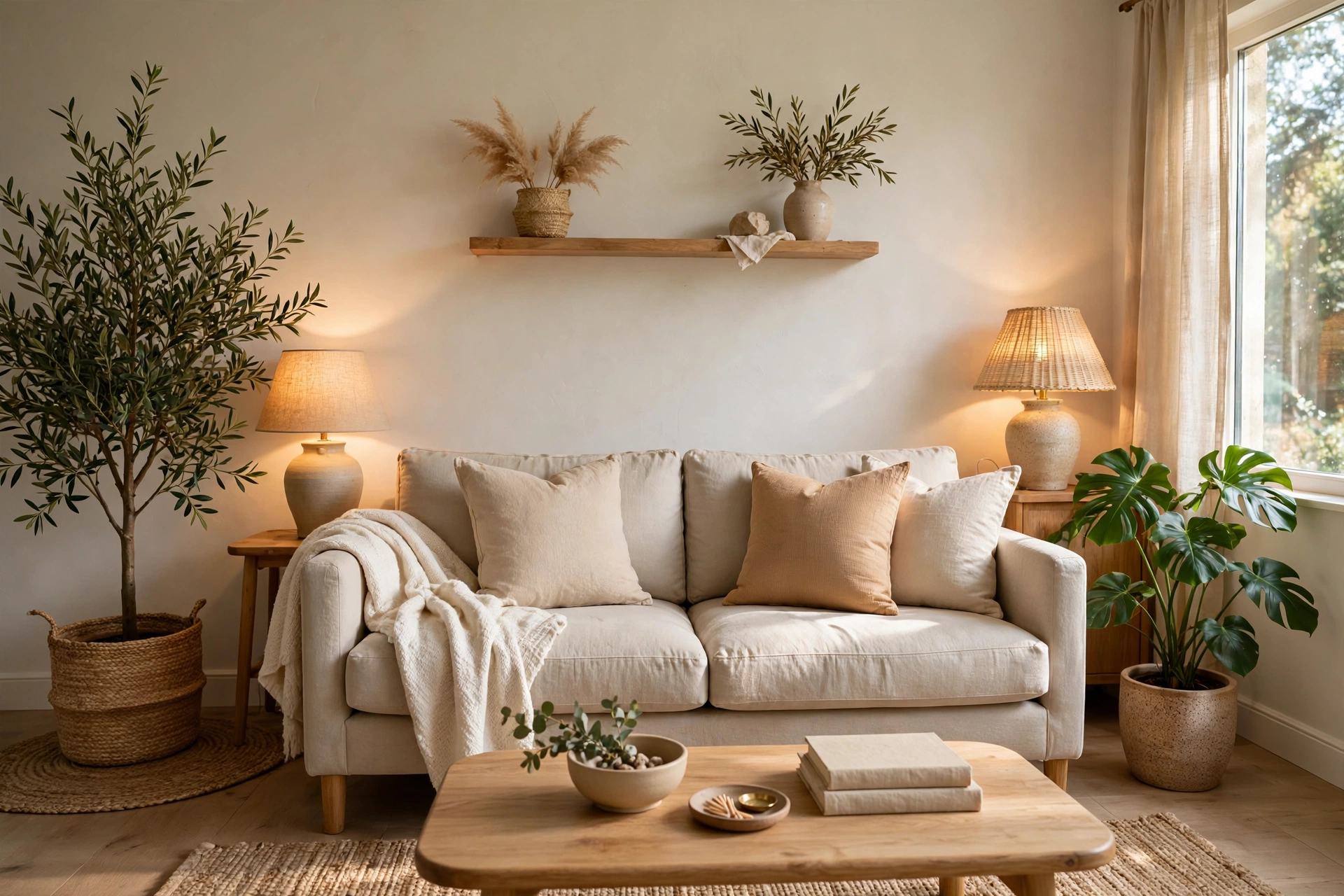
Staging plays a big part, too. A stylist may add plants and lamps that will not stay. Small touches can change a room fast, as our list of decor touches that change a room shows. Price the bare room, not the styling.
Order matters, too. Listings often start with the living room and the best bedroom. By contrast, weak rooms sit at the end. Scroll to the last photos first once in a while.
Most agents present a home at its best within the rules. In short, your job is to add the missing checks, not to assume the worst.
Frequently Asked Questions
Can I see inside any house on Google Maps?
No, not in most cases. Street View mainly shows streets and the outside of homes. Inside views exist for some public places like museums and small businesses. For a private home, use the listing photos or a 3D tour on a property site instead.
Is a 3D tour as good as visiting a home?
No, but it comes close for layout and size. A 3D tour shows flow, room links, and scale very well. It cannot show smell, noise, or small faults. Use it to shortlist homes, then visit your top choices in person before you decide.
Do all listings have a virtual tour?
No, many listings still rely on photos alone. Tours depend on the agent, the seller, and the tools they use. If a home you like has no tour, ask the agent for a live video tour. Many agents will happily walk through with a phone.
How can I check if a room is really big enough?
Use the floor plan sizes first, then measurement mode in a 3D tour if it exists. Compare those numbers with your bed, sofa, and table sizes. Instead, do not trust wide angle photos for size. Numbers on a plan are far harder to flatter.
Why do listing photos look better than the real home?
Agents use good light, wide lenses, and staging to show a home at its best. Colours can also shift on screens. That is why you should cross check photos with a tour and a plan. As a result, three views together give a fairer picture.
Can I ask for my own home to be blurred online?
Yes, on Google Maps you can request a blur for your home in Street View. Only the owner or tenant can ask, and proof of address is needed. Open the image, click Report a Problem, and submit the form. The blur is permanent once applied.
Conclusion
You now have a clear order for every home search. Start with Street View, study the photos, walk the 3D tour, and test the floor plan. Then run the six checks.
Finally, your next step is simple and takes twenty minutes. Pick one home you like today and run the full six check routine on it. Then write down what you can prove and what you still need to ask. Then book a visit only for the homes that pass.